Import a license
When Avalon is installed, the first step is to import the license provided by our support team.
First import
To do so, simply connect to Avalon's URL and click on the button No active license - add one here
Use the FQDN
Access to Avalon requires the FQDN of the VA/VM.
Using an IP address is only allowed if it was set as the FQDN during installation (not recommended; suitable only for proof-of-concept setups).

Select your license on your local drive and validate.
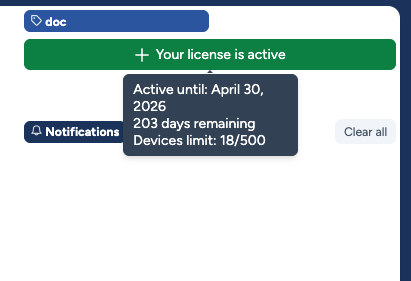
If your license is valid, the button should turn green and you will be able to display your license details by hovering the curosor over the button:
- Date limit with the remaining days
- Devices count current and global
Connect to Avalon!
Once the license is active, you can now connect to Avalon.
Update license
To update your license, simply click on the same button to select a new license.