Avalon Manager
Avalon Manager will allow you to:
- Install and update Avalon
- Download logs to help our developers' team to diagnoze any issue encountered
VM mode
There are no specific requirements for Avalon Manager when used in VM mode.
Avalon Manager first connection
Avalon Manager URL
Avalon Manager is available through you web browser in HTTPS on port 8443.
After accessing the Avalon Manager UI, you are required to create a user.
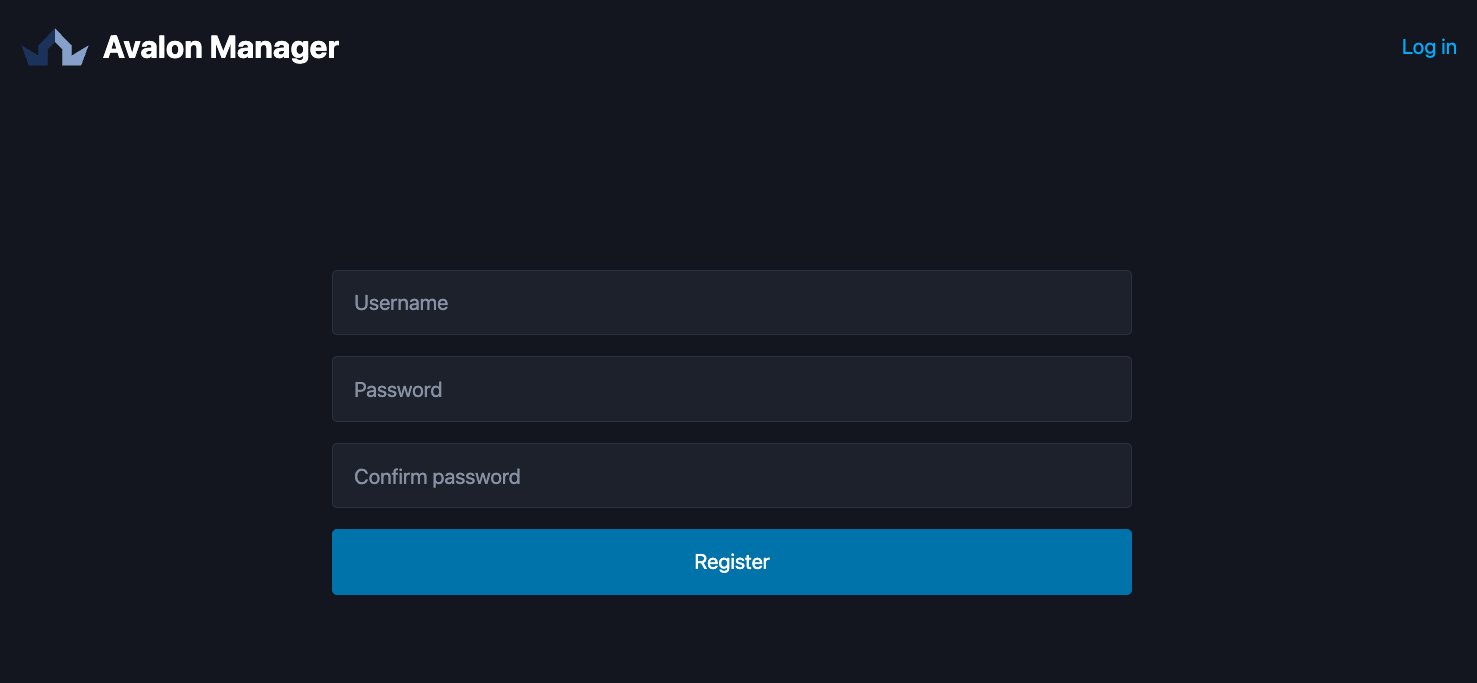
Avalon Manager only supports local user as of Fall 2025.
Note
You can use any username except avalon which is reserved for the support team.
Once the user is created you can connect to Avalon Manager.
Avalon Manager guidelines
Avalon Manager UI uses tabs to help you navigate through the different pages.
The tabs are located in the top right corner where you can also logout from the application.
When you connect to Avalon Manager, you are redirected to the Status tab automatically.
On the first login, no version will be running since Avalon Manager cannot access yet our servers. You should see this display:
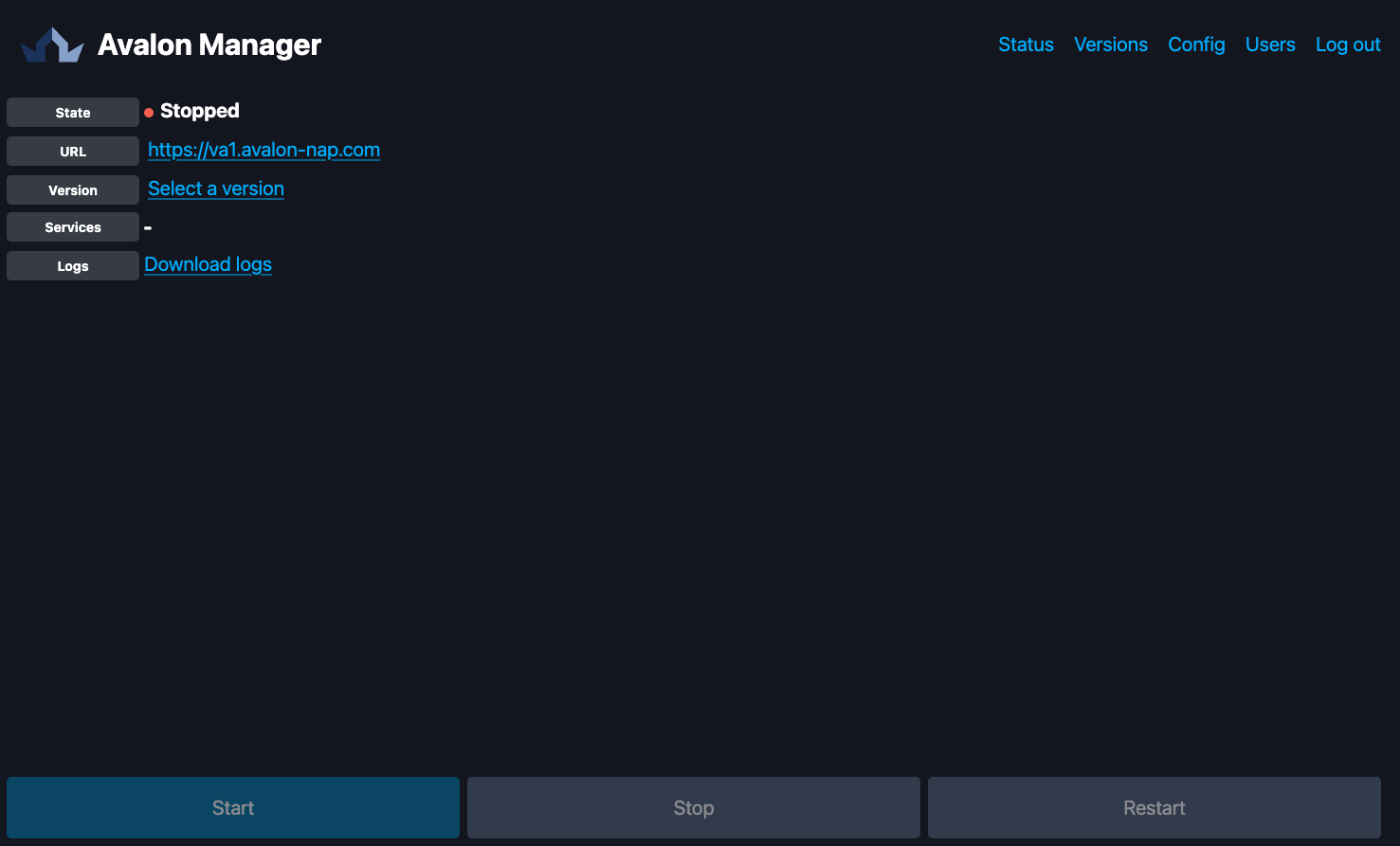
If you intend to use our servers to update Avalon, then you will need to register the credentials you will be provided by the team to access our servers.
This will be done in the Config tab.
Config
In the Config tab you will find all parameters to configure your Avalon Manager instance:
- Proxy configuration
- Avalon Registry credentials
Avalon Registry credentials
Those credentials are communicated by our team during the onboarding process.
- a Custom registry if you intend to use a private Docker Registry
Beta
The custom registry is still in Beta and not officially supported as of Fall 2025
- SSL configuration (on/off) and the ability to use your own certificates
Beta
SSL customer's certificates is still in Beta and not officially supported as of Fall 2025
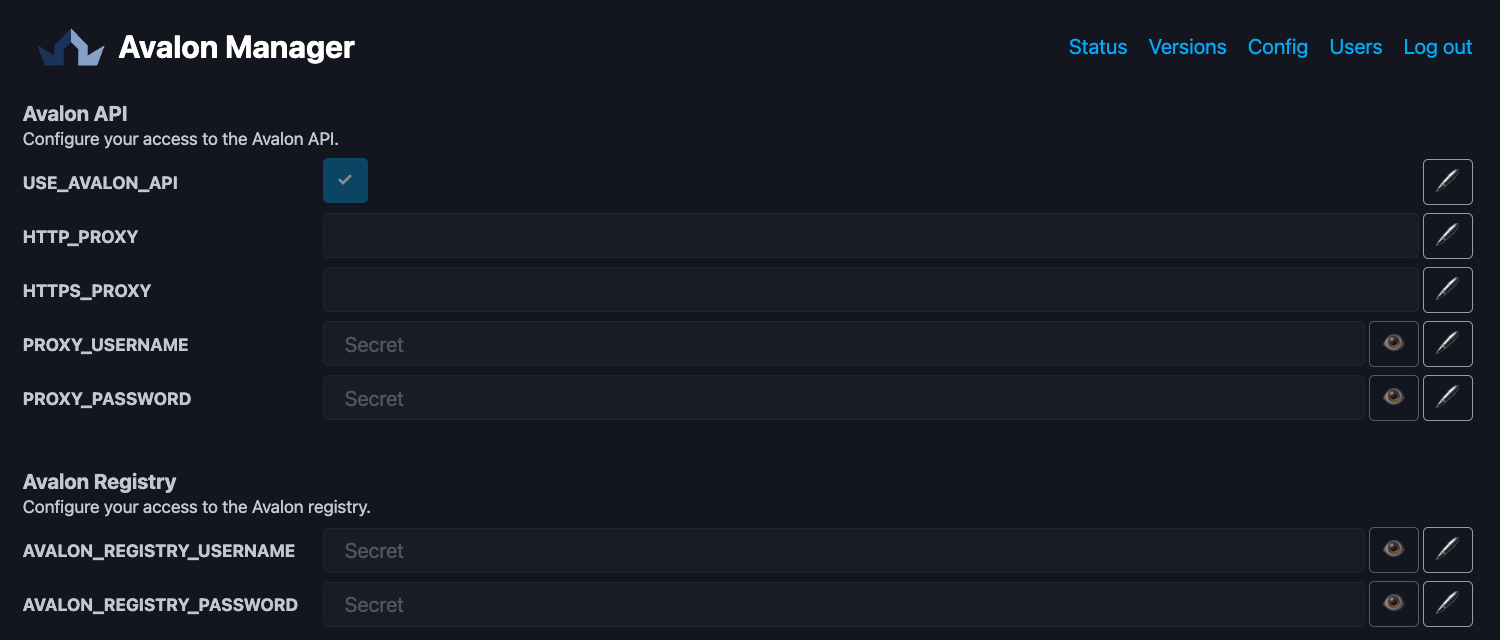
You can edit the parameters by clicking the pencil icon on the right side of the parameter’s line. Then, you will need to either validate the new value or cancel using the corresponding button that appears.
For credentials, click the eye icon to the left of the pencil to display the current value.
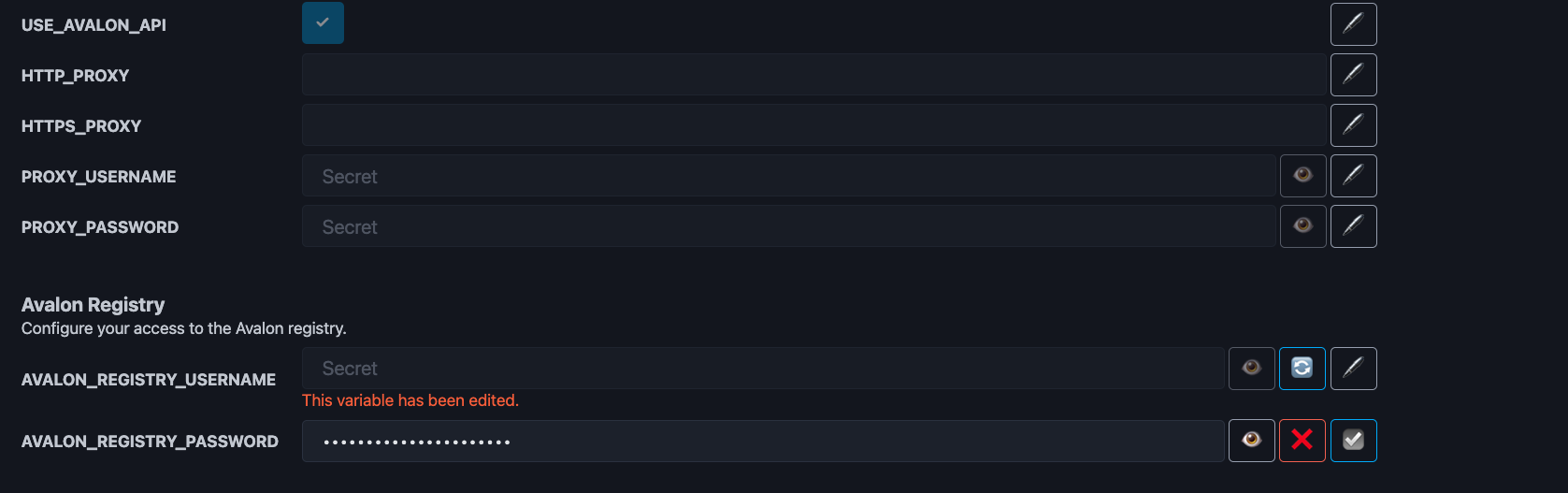
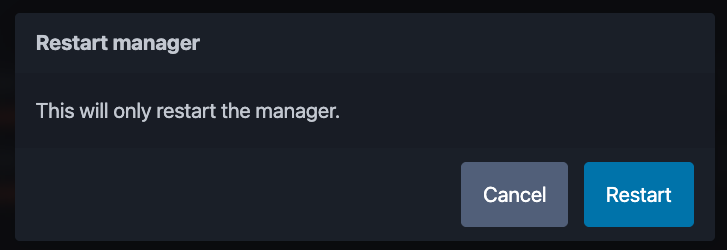
Most parameter updates require an Avalon Manager restart. If a restart is needed, a message will appear in the bottom-right corner of the tab, which you can click to restart Avalon Manager.

Automatic download
If you just registered your Avalon Registry credentials and that all connectivity requirements are completed, then Avalon Manager will automatically download the latest version.
In this case, Avalon Manager will restart in less than 5 seconds.
Warning
If Avalon Manager seems stuck for more than 10 seconds, it means it might struggle to access our servers once you have registered Avalon Registry credentials.
Then you will need to ensure that the following requirements are met:
- Avalon Manager has IP connectivity to our servers
- All flow relative to Avalon Manager are open on your firewalls
- You have communicated your public IP address (or range) to our team during the onboarding process
If all requirements are met, then contact our support team: support@avalon-nap.com
You can now jump to the Versions tab to follow the first Avalon's download.
Versions
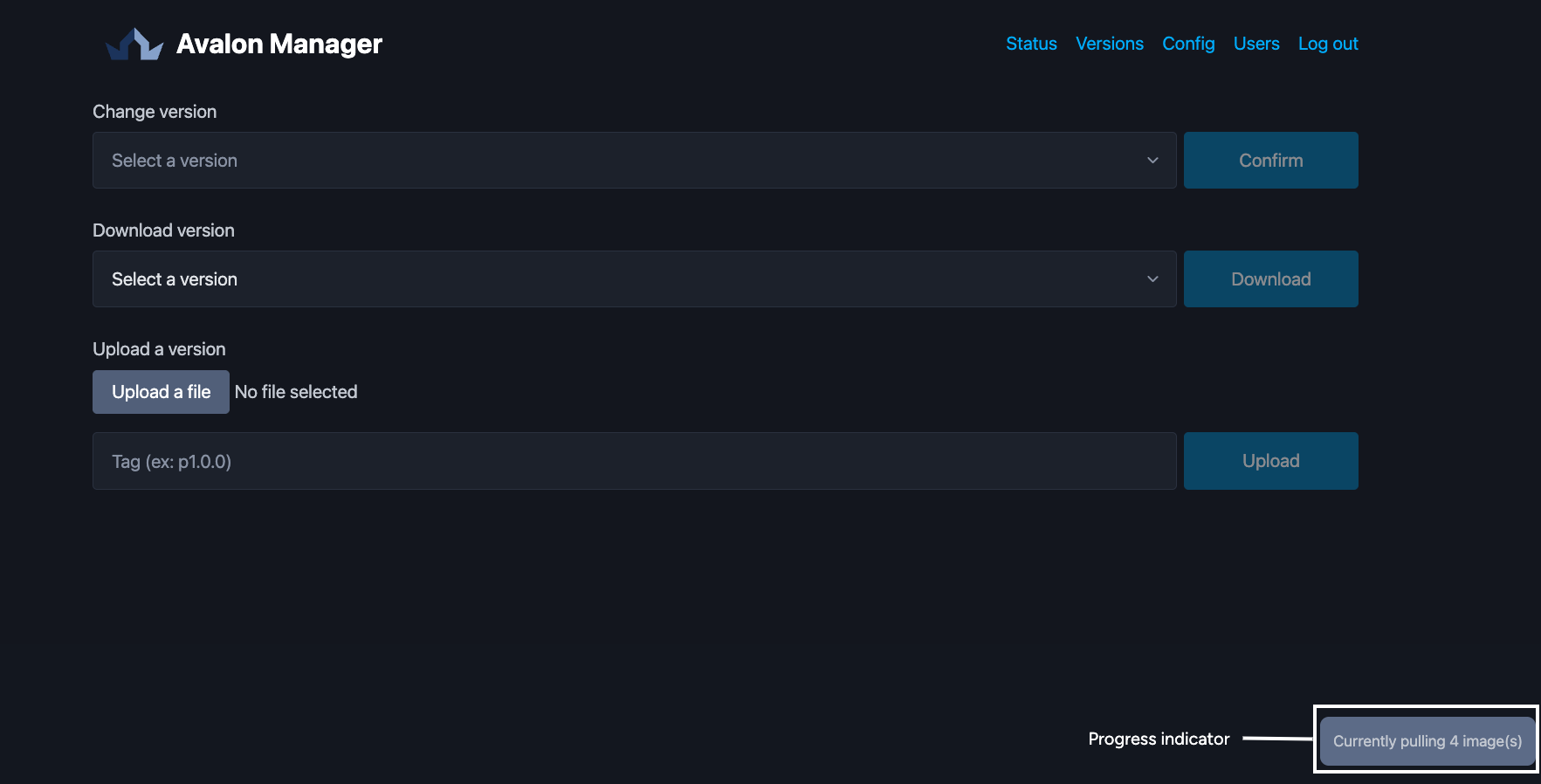
You should be able to see Avalon Manager downloading the latest production release of Avalon.
You will see a notification message in the bottom right corner:
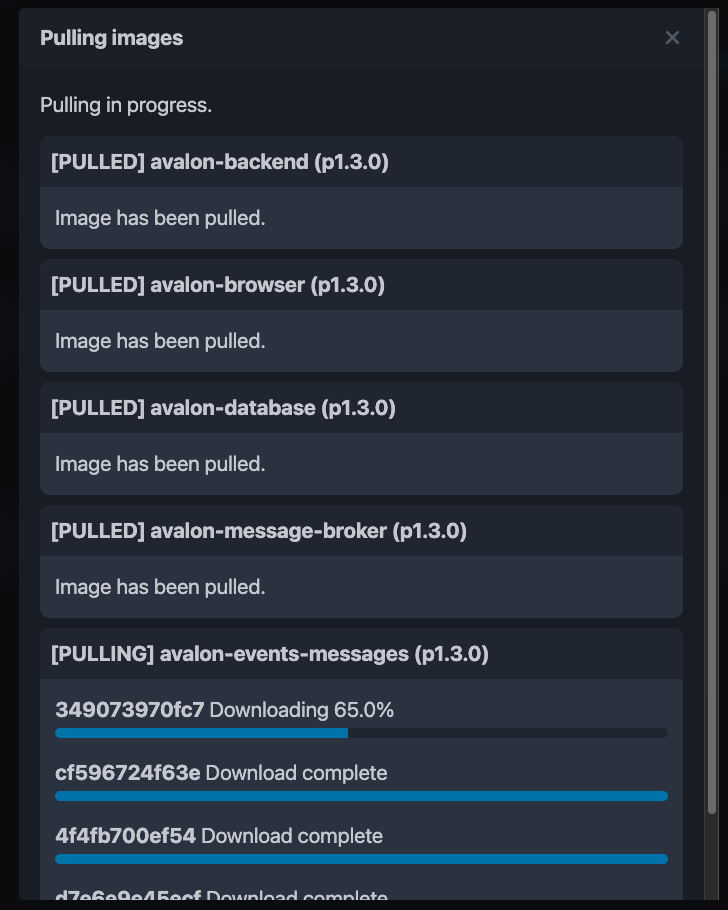
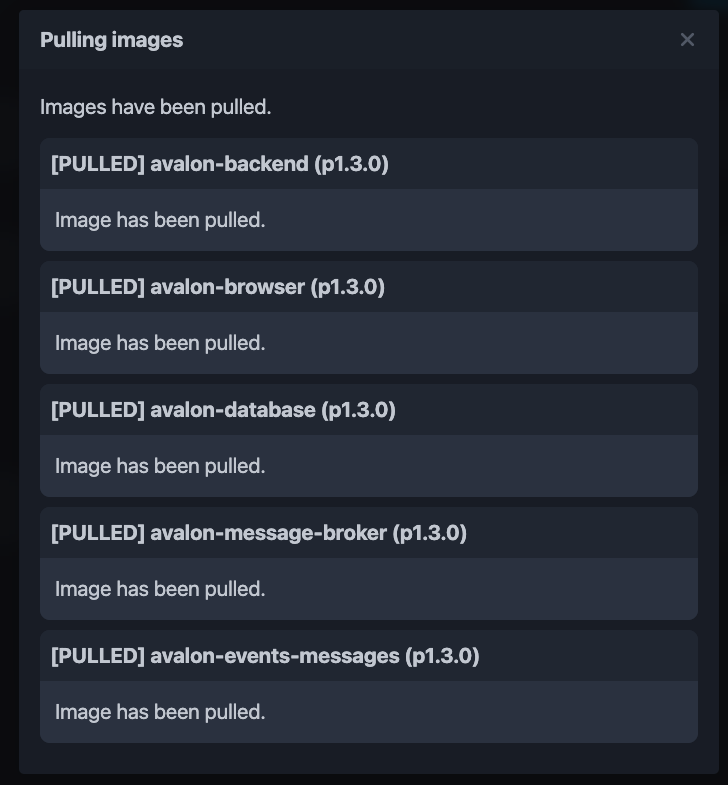
You can then monitor the progress in a dedicated window by clicking in the message:
Release nomenclature
All production releases begin with a p
We may deliver specific releases only available for some customers for integration purposes.
Once the download is completed, the release will be available in the Change version dropdown at the top of the tab:
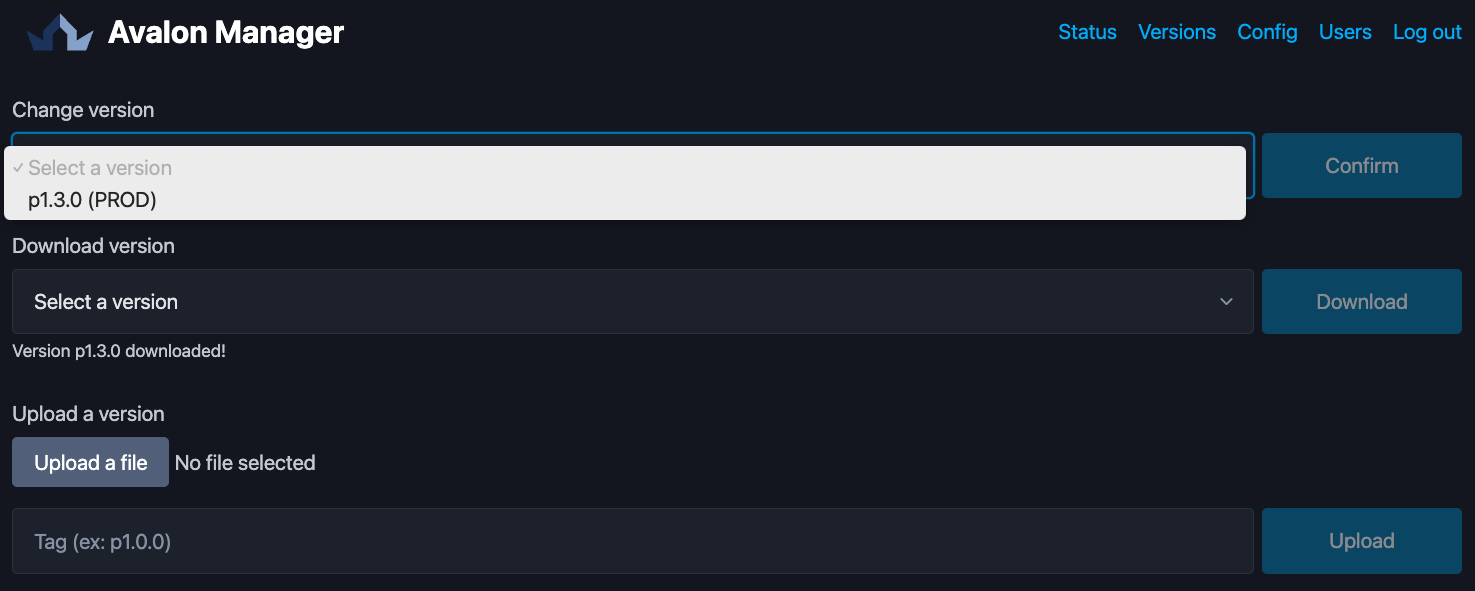
When you click the Confirm button, you will set the next Avalon's version to run, it will have no effect until you restart Avalon.
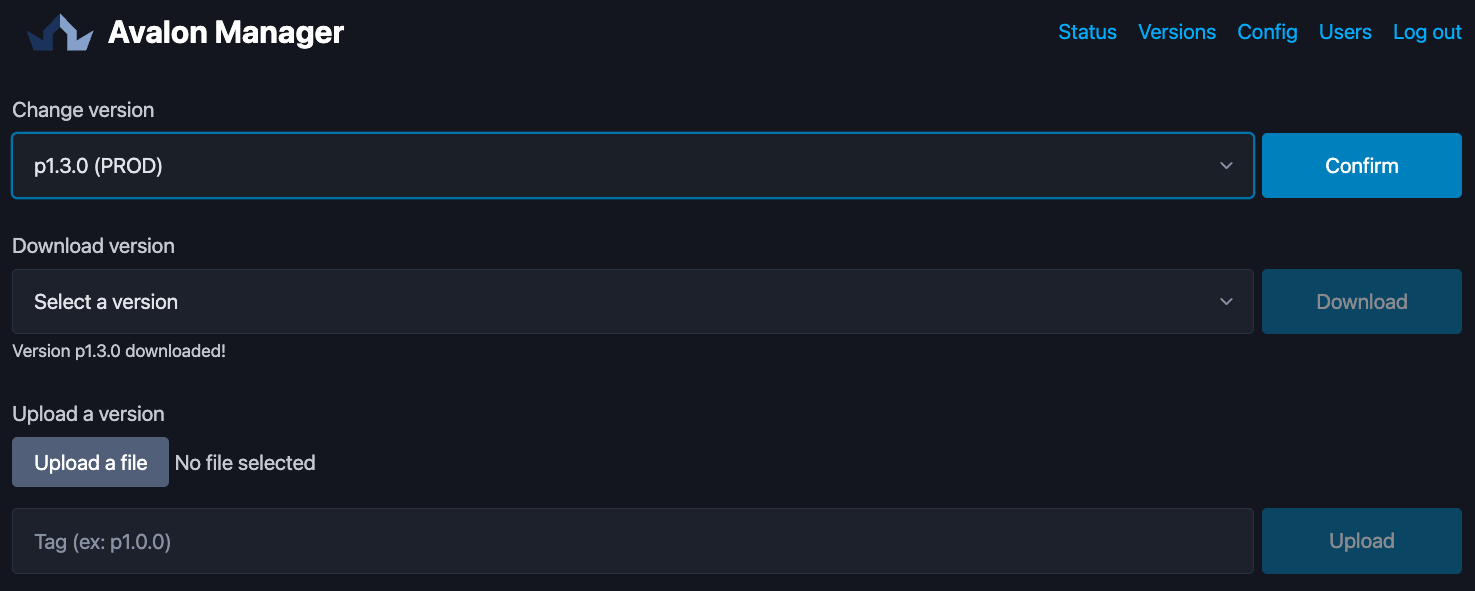
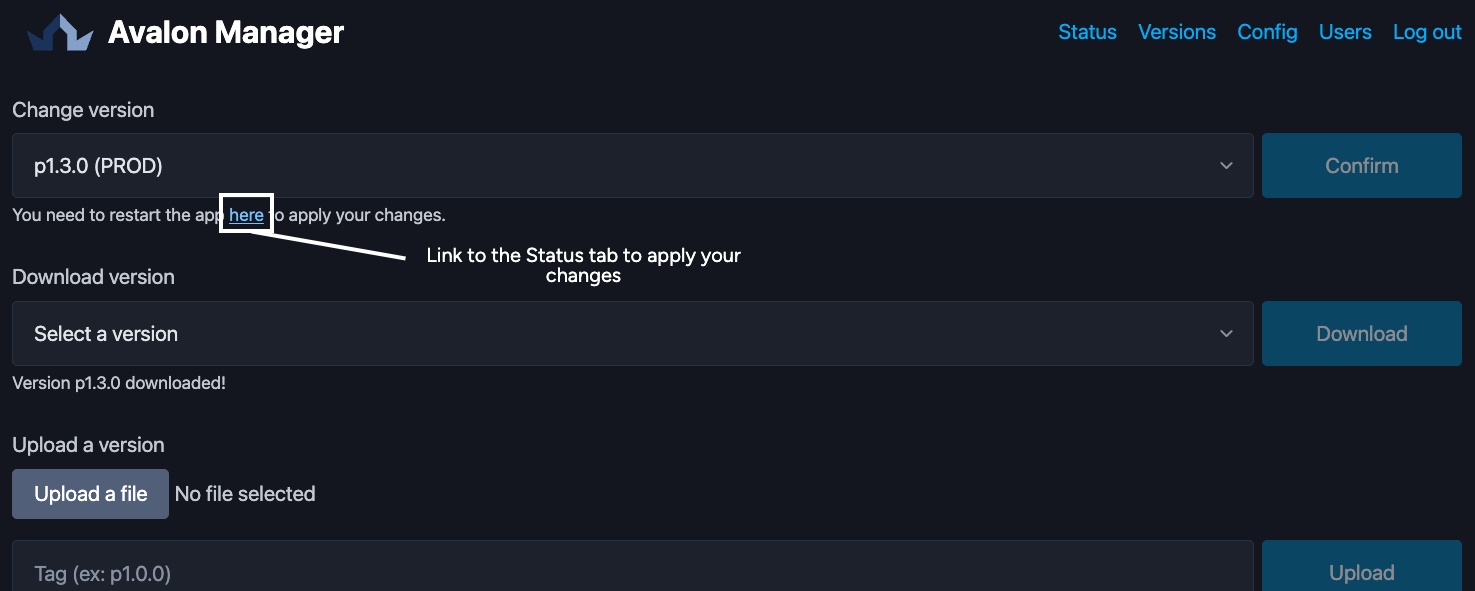
Once you have confirmed the new version a message invites you to restart Avalon in the Status tab.
Status
Here is the final step to have Avalon up and ready.
You should see the following display after switching to the Status tab once you have selected a version of Avalon to run:
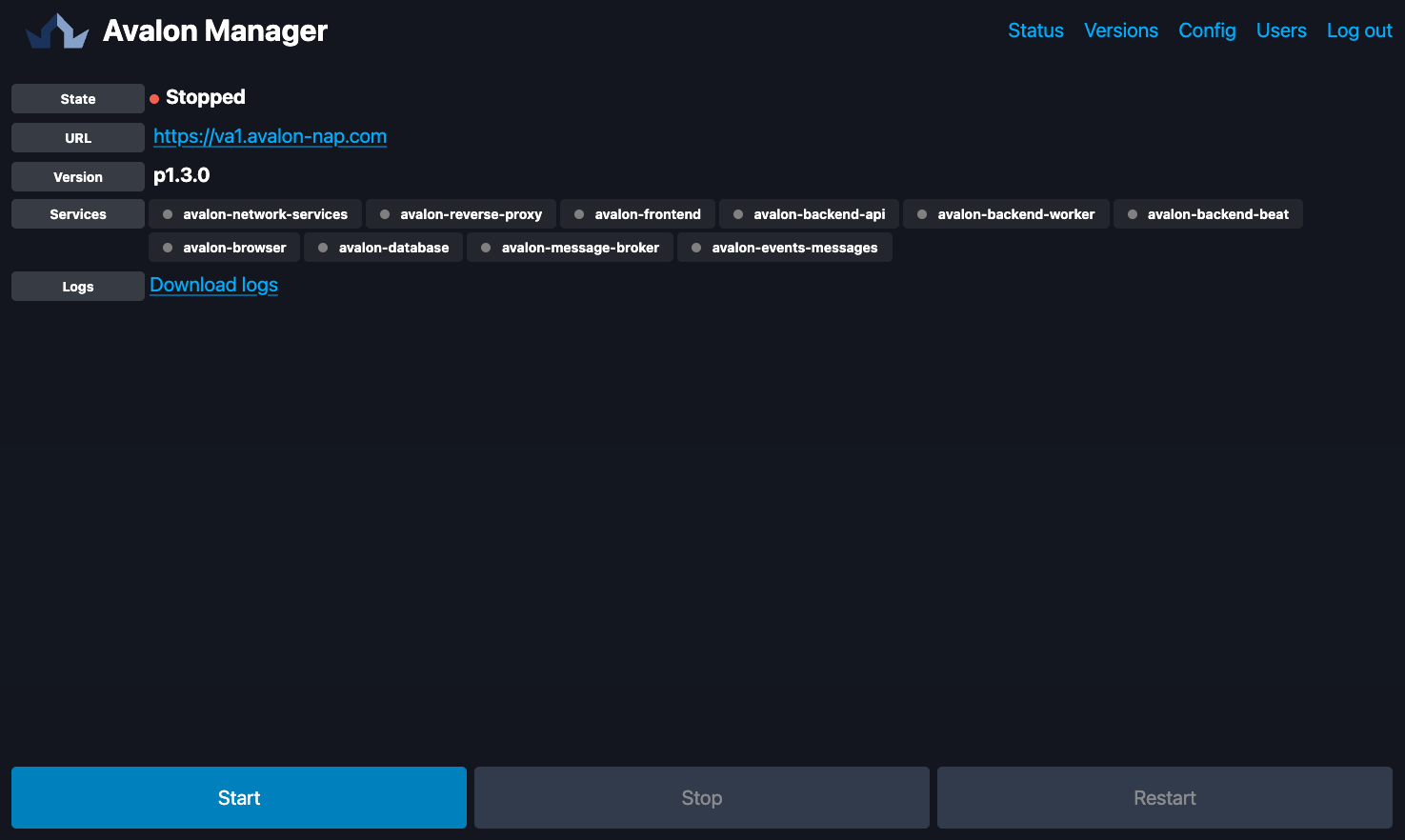
You just need to click the Start button on the bottom left of the Status tab to launch Avalon. Right after you hould see the status of Avalon App change from stopped to Starting will the status of all containers updatade in real time:
- Gray: container is stopped, either because Avalon is shutdown of the container has experienced a critical failure
- Yellow: container is starting, avalon-backend-api and avalon-backend-worker will be the last to start
- Green: container is UP and running
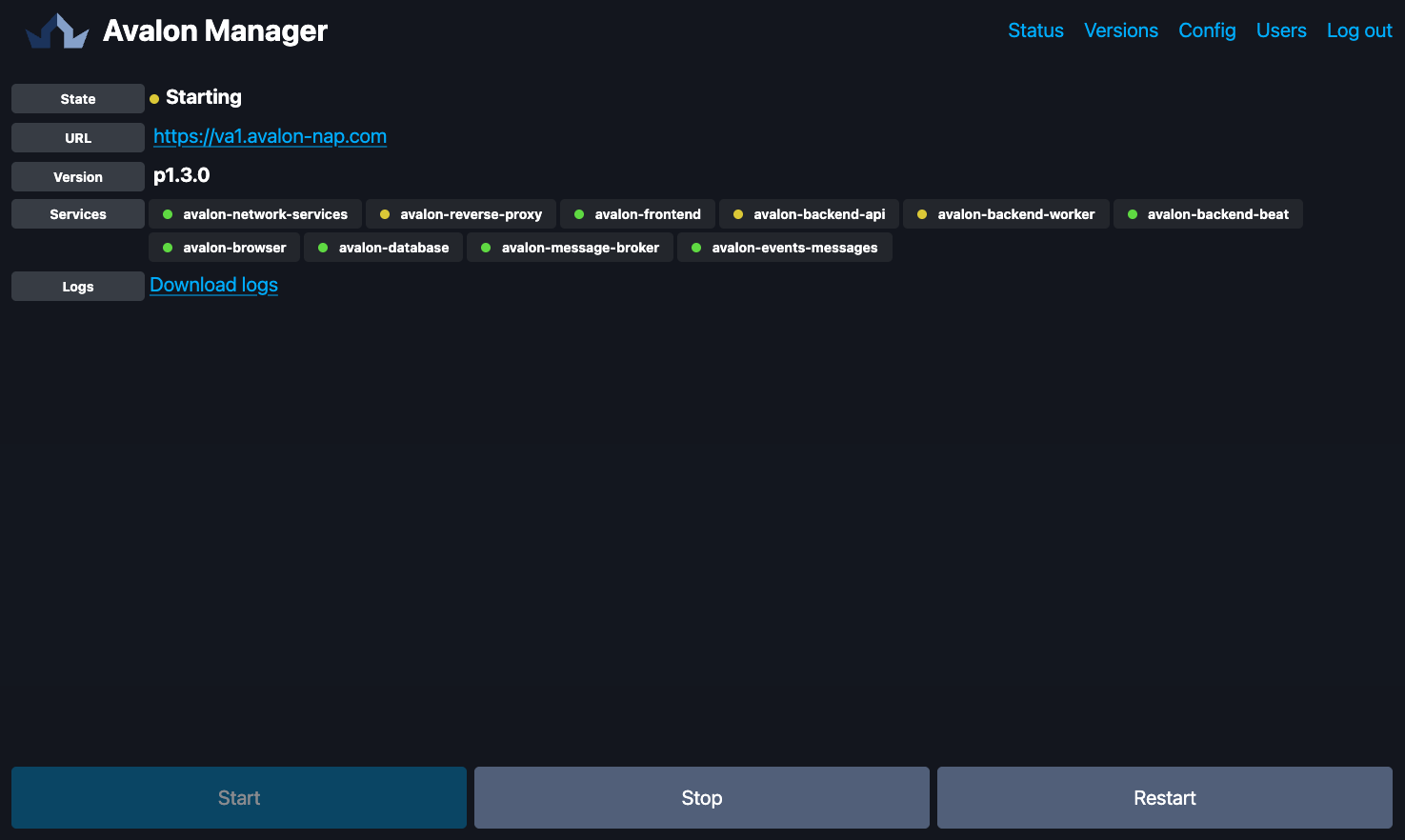
Once all containers are started, the overall status of Avalon will change to green / Running
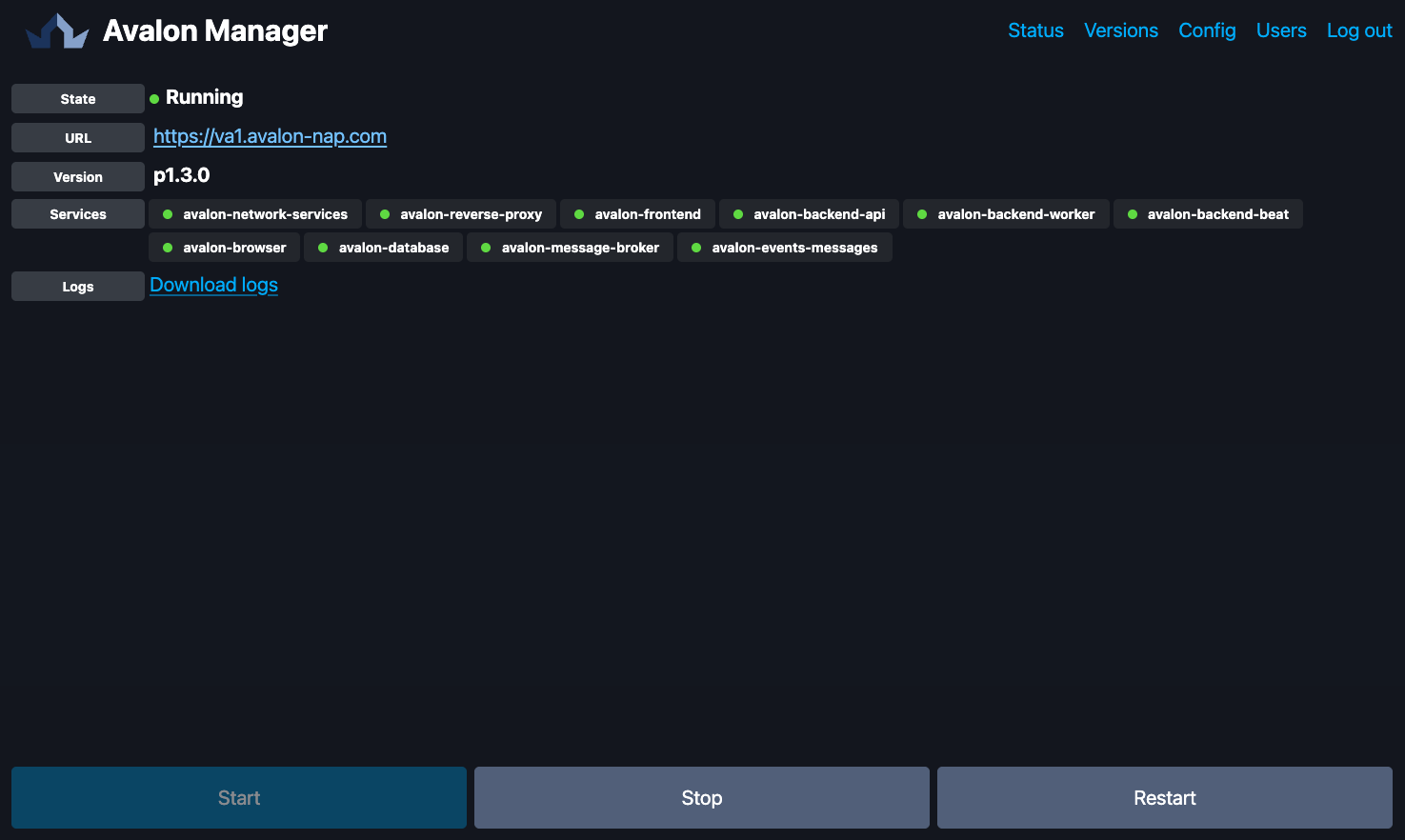
Avalon is now ready to use and you can simply click on the link provided to open a new tab in your web browser to display Avalon login screen.
Import your license
The first step will now be to import the license provided during the onboarding process.