Devices
This page provides a comprehensive list of all network devices managed within the currently selected Tenant, spanning across all sites. It is the primary entry point for asset tracking and direct management access.
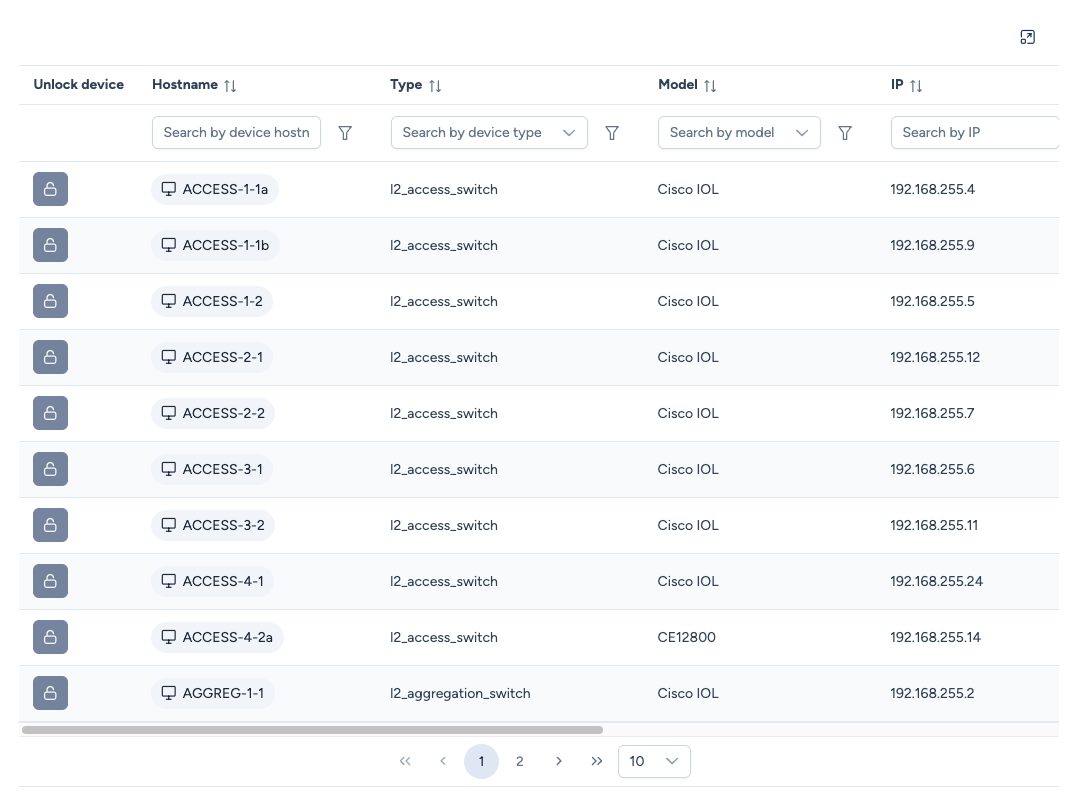
Device List details
The table displays the essential operational data for each asset:
- Unlock device: Displays a lock icon if the device is currently undergoing a critical operation (see Device Locking below).
- Hostname: The network identifier of the device.
- WebSSH Access: Clicking on the hostname automatically opens a secure WebSSH terminal session to the device in a new tab.
- Type: The Avalon functional role (e.g.,
l2_access_switch,router). - Model: The hardware model definition (e.g.,
Cisco IOL). - IP: The management IP address.
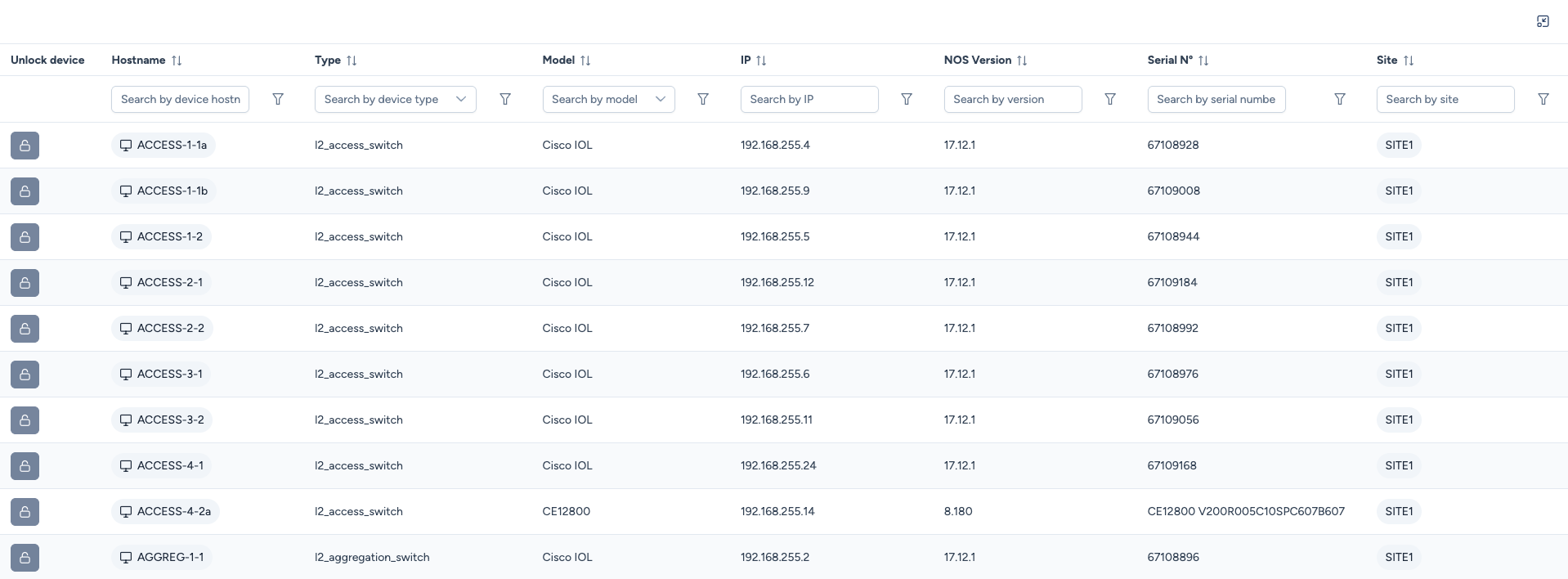
- NOS Version: The currently running Operating System version.
- Serial N°: The unique hardware serial number.
- Site: The location the device belongs to.
Viewing Options
Given the density of information, you can adjust the display mode to view all columns comfortably.
- Full Screen Mode: Click the Expand icon (top-right corner) to maximize the table. This is particularly useful for viewing "wide" columns like Serial Numbers or Site names without horizontal scrolling.
Device Locking & Upgrades
Avalon protects devices during sensitive maintenance operations by applying a Lock.
Why is a device locked?
A device enters a locked state automatically when a Firmware/OS operation is initiated via Avalon. This includes:
- Uploading a new NOS Image.
- Activating a stored image.
- Upgrading (The full workflow of Upload + Activation).
Force Unlock:
The lock is normally released automatically once the operation completes (success or failure). However, if a process hangs or crashes, the device may remain locked, preventing further actions.
- Action: Click the Lock icon in the first column.
- Result: This manually releases the lock.
Check process status first
Before forcing an unlock, ensure that no upgrade process is actually writing to the device's flash memory to avoid corruption.