First AutoDiscovery
AutoDiscovery is the main way to integrate your network inside Avalon.
One of the main goal of Avalon is to be able to draw you network in a standard way so you we have clean and neat schemas of all your sites.
Access the AutoDiscovery
The main access to the AutoDiscovery feature is to create a map:
Access the tenant creation menu by navigating with the top tabs menu Production → Maps
There you will create a first map by clicking on the New button, lets call it Site1
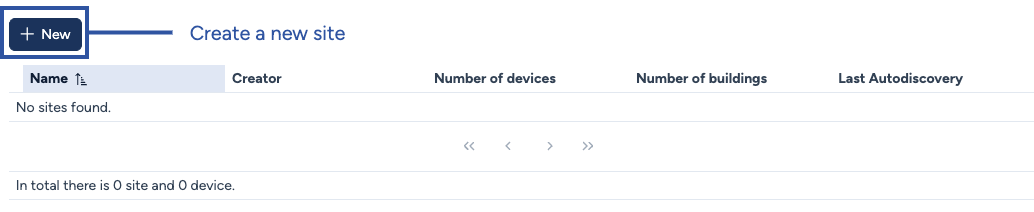
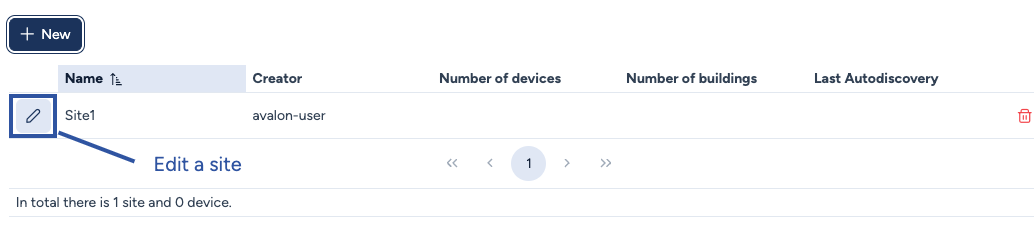
The site will show in the datatable presenting all the tenants sites.
You will now enter the map of your newly created site by clicnking on the pencil on the left of the site's name.
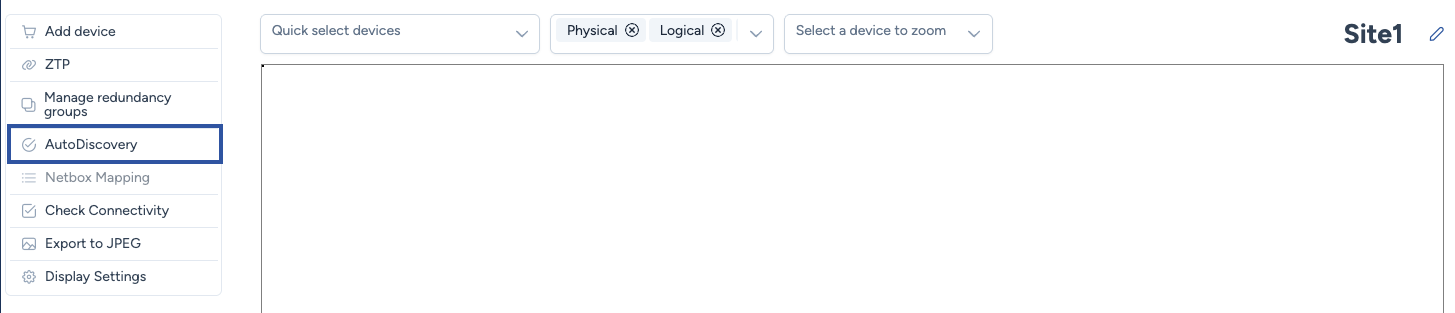
Once in the map display, you will see the feature specific submenu appears on the left panel.
Ther you will find an item called AutoDiscovery and you will click on it.
Configure the AutoDiscovery
AutoDiscovert inventory
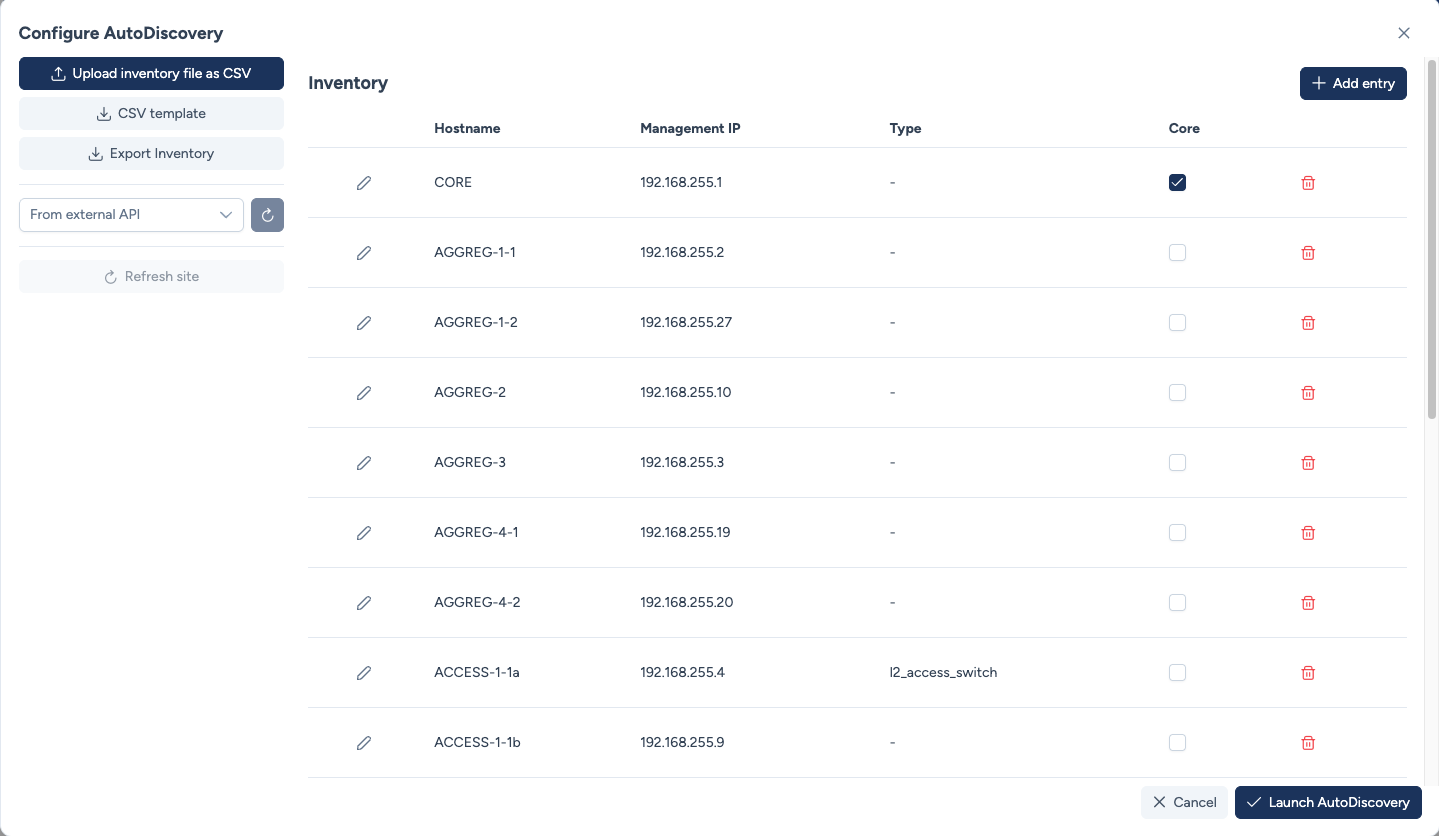
This will show a modal (a modal is like a pop up smaller window) that will allow you to configure AutoDiscovery.
Note
We will not described all settings available for the AutoDiscovery process, please refer to the Detailed documentation to learn more on the AutoDiscovery options.
There are four ways to create an inventory for the AutoDiscovery process:
- Use a CSV file
- Use a Source of Truth (SoT) linke Netbox
- Refresh the site based on the state of Avalon's DB
- Manually add devices directly in the datatable of the modal . This ability can be combined with any other previous method.
Only option 1 is avaible right now because we did not configure an external API and this site has not been discovered yet.
Feature request?
AutoDiscovery based on IP ranges is not yet supported; currently, a provided inventory is required.
This approach has the advantage of speeding up the initial discovery process, as it focuses only on devices that Avalon can integrate (while still discovering CDP/LLDP neighbors connected to your network devices).
We remain open to implementing alternative network discovery methods in the future if needed.
Use a CSV template
Lets use option 1 and create a CSV file. You can use the button  CSV template
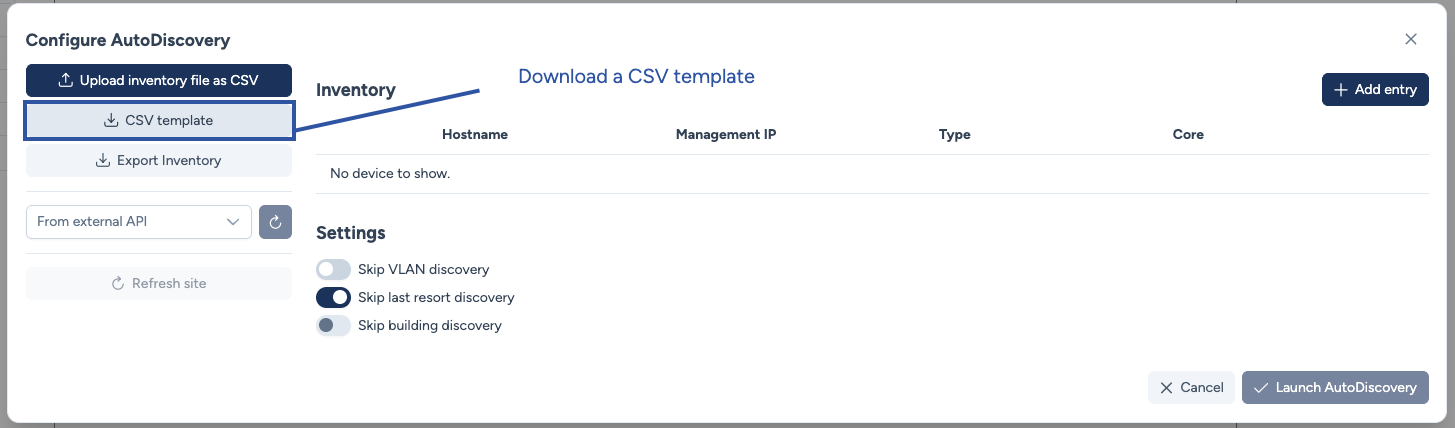
The CSV template allows you to define the following data for each host:
| Property | device_hostname | device_mgmt_ip | is_core | device_type |
|---|---|---|---|---|
| Mandatory | Yes | Yes | No (at least one must be defined) | No |
| Type | Free text | IP address | Boolean (true/false) | Text referring to a type in the DB |
| Description | Hostname of the device | Management IP of the device | Core device? | Type of device (e.g., router, l2_access_switch) |
Inventory constraints as of Fall 2025
- At least one 'Core' device must exist in the inventory; otherwise, the process cannot be launched.
device_typemust be chosen from the internal device types defined by Avalon. Refer to the detailed documentation for the list. This list is not yet editable.device_hostnamemust match the device's hostname when connecting (case-insensitive).
Note
You CSV can be incomplete, for instance you may not have defined a core device.
The CSV will still be imported into the AutoDiscovery modal and you will be able to modify device properties directly in the Datatable.
Lets import an incomplete CSV with just hostnames and IP address:
device_hostname;device_mgmt_ip;is_core;device_type
CORE;192.168.255.1
AGGREG-1-1;192.168.255.2
AGGREG-1-2;192.168.255.27
AGGREG-2;192.168.255.10
AGGREG-3;192.168.255.3
AGGREG-4-1;192.168.255.19
AGGREG-4-2;192.168.255.20
ACCESS-1-1a;192.168.255.4
ACCESS-1-1b;192.168.255.9
ACCESS-1-2;192.168.255.5
ACCESS-2-1;192.168.255.12
ACCESS-2-2;192.168.255.7
ACCESS-3-1;192.168.255.6
ACCESS-4-1;192.168.255.24
ACCESS-4-2a;192.168.255.14
DC-1;192.168.255.13
RT-1;192.168.255.25
You can use the button  Upload inventory file as CSV to import your inventory inside the modal.

As you can see the Launch AutoDiscovery button is not yet enabled because no device has been defined as the core of the site.
You can click on the pencil of one of your device(s) and click on the checkbox to define one or more core device(s).
In this example we will also specify the device_type l2_access_switch for ACCESS-1-1a which will be classified otherwise by Avalon as an aggregation switch because it has a downstream neighbor which is ACCESS-1-1b.
We will also tell Avalon that RT-1 is a router and DC-1 a core_dc_switch.
Neighbors in Avalon
In Avalon, Device B is considered a downstream neighbor of Device A if Device B is connected to Device A and is located farther from the core.
Conversely, Device A is an upstream neighbor of Device B.
AutoDiscovery process
Now the inventory is valid, you can launch the process with the Launch AutoDiscovery button.
The AutoDiscovery process will connect to each device of the inventory with the service account provided.
The whole process is available in the Detailed documentation, here is a summary:
- Platform detection: Avalon will try to guess what is the platform it is connceted on.
- Neighboring: The next step is to find how device are connected together. We use the following protocols to find physical connections between devices:
- CDP
- LLDP
- LACP
- STP
- Technology discovery: the next step is to gather which technologies are deployed on the devices, this will mainly include standard technologies as VLANs, IP addresses, VRF, aggregates but also stacking and High Availability technologies.
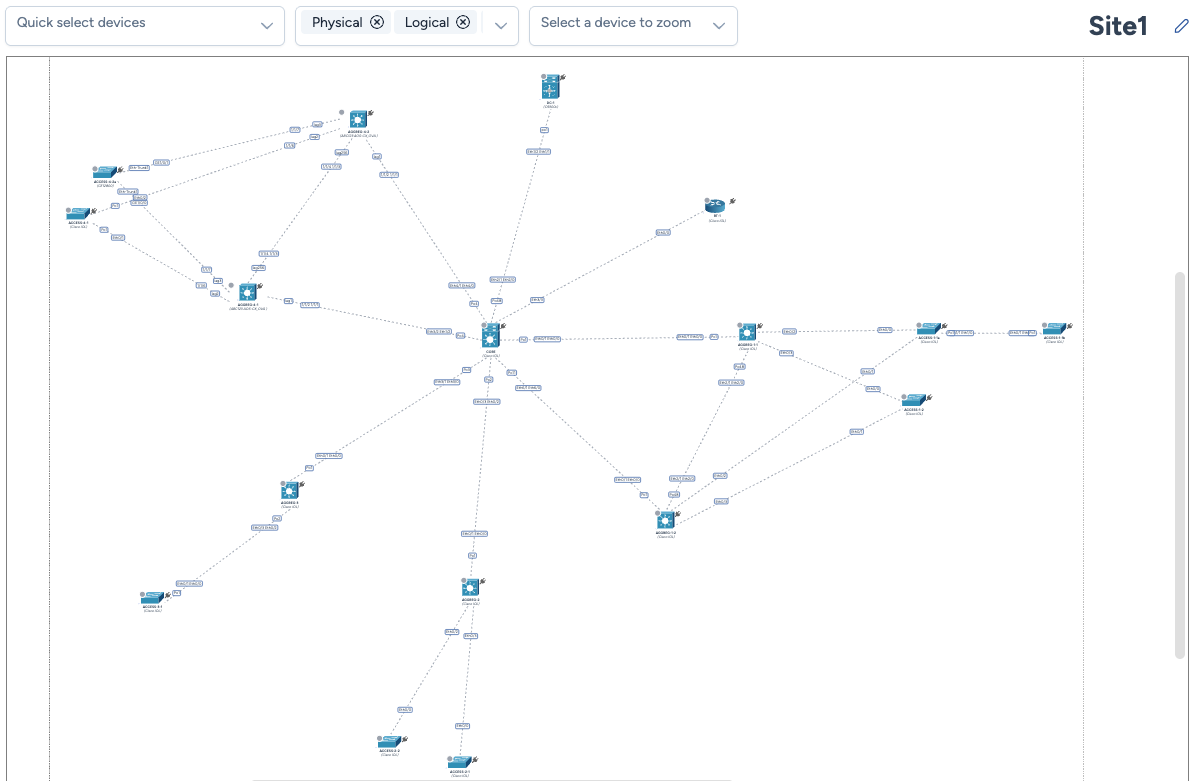
- Finally, the process register all data into the DB, calculates devices position on the map while puting the core(s) device(s) at the center and drawing star like topologies around the core(s).
At the end of the process the page automatically reload and we display the site diagram.
Notifications
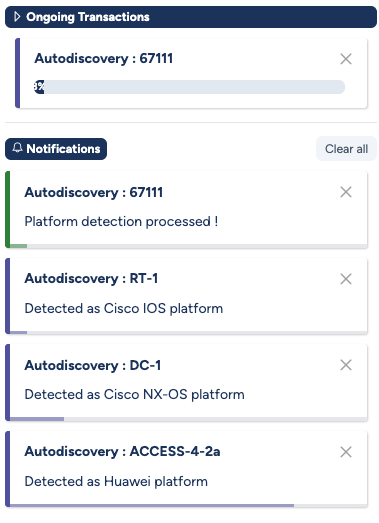
During the process, temporary notifications will appear on the right panel.
At the top of this panel, you will also see that a transaction with a unique ID has been created. This allows you to monitor the overall process by showing the percentage of completion.
Transactions
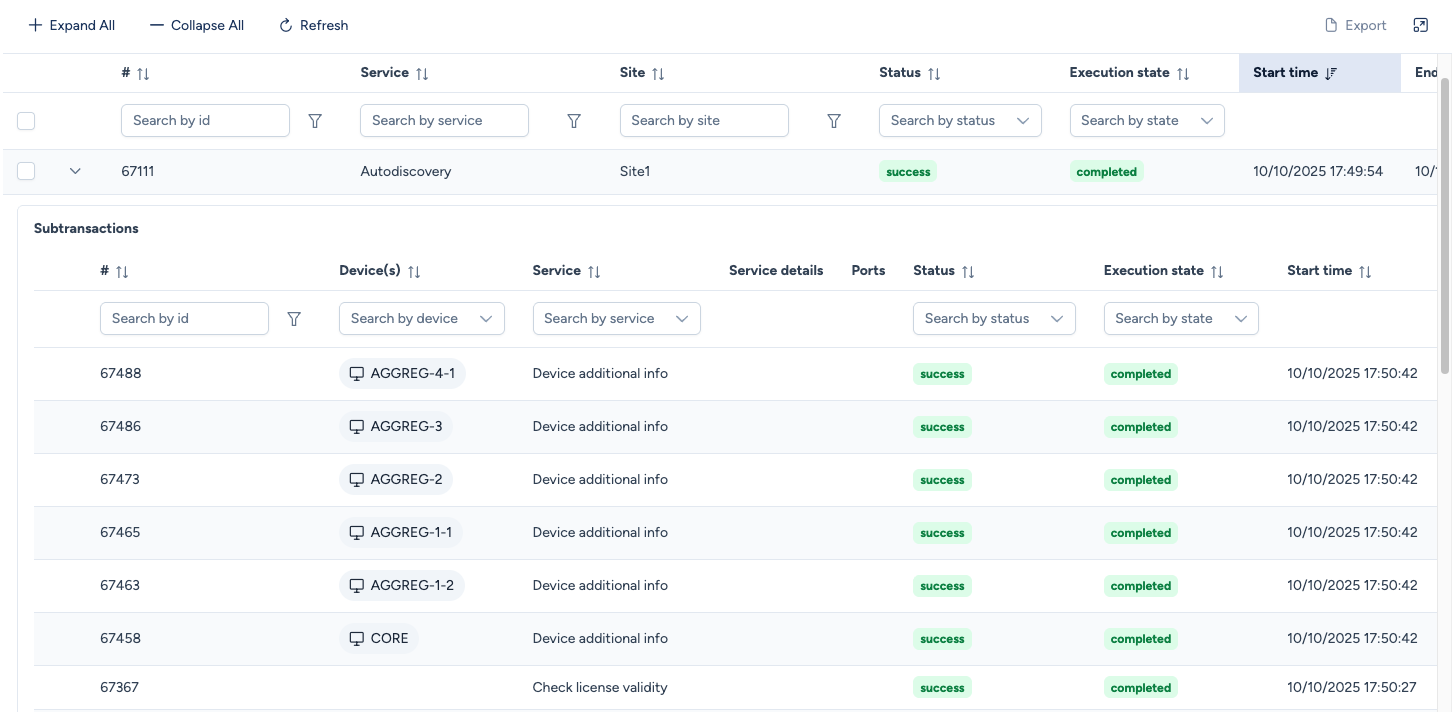
Transaction details can be found under Production → Transactions.
Each transaction consists of one or more subtransactions. In certain cases, you will see messages associated with a subtransaction, which provide insights into how specific tasks were performed.
Result
Finally, the network map should be displayed on the screen:
Congratulations!
You have successfully integrated your first site into Avalon! Now it's time to explore all of Avalon's features in depth with the Detailed Documentation.