Create a user
Access Users page
If you came here from the Create a tenant section, then you just need to click on the Users submenu in the left panel.
Otherwise, just navigate with the top tabs menu Backoffice → Administration and click on the Users submenu in the left panel.
Create your first user
This screen will show the same setup as the Tenants submenu, a collapsible component will be used to create or update a user and a datatable at the bottom will show you existing users with the pencil ans trash bin icon the either enter edit mode or delete the user.
A user can either be local or LDAP, in both cases, an entry will be added to Avalon's database (DB) will the following differences:
- password:
- local: for local users, the password is stored hashed in the DB. You won't be able to retrieve local users' password but you can reset it if lost.
- LDAP: users' password are not stored in Avalon's DB neither in memory once the authentication process is completed.
- email: you can only add an email address for local users. Email for LDAP users will be retrieved from you LDAP servers.
Note
You wont be able to create a LDAP user if not LDAP server is defined in the appropriate section.
The last part of the user's configuration is to assign him to tenants and for each tenant specify a role:
- user: the user will be a simple user that can only consult data from Avalon but cannot trigger any action towards the network.
- admin: the user will have the ability to perform any tasks available in Avalon.
When you select a tenant to assign in the dropdown list, you need to select a role on the right side of the list and click + Add. This button will only be enabled when a role has been selected.
Note
A user can be assigned to the admin tenant and only the admin role is available for the admin tenant.
Roadmap
RBAC with more control on each feature will come in Q1 2026.
Lets create a local user and make him admin for the admin and Avalon tenants:
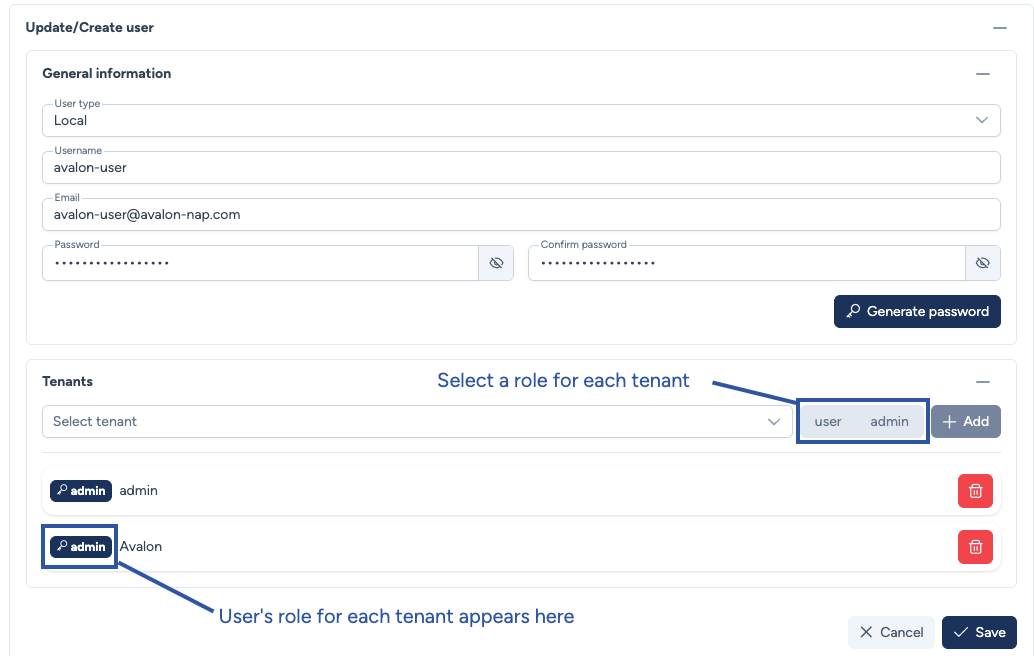
You first user is now created and you will logout from admin user, reconnect with you newly created user and select the regular tenant you created in the previous section.
Move to you first AutoDiscovery!
You can now start to integrate your network into Avalon with the AutoDiscovery feature.