Site
This page serves as the central dashboard for a specific Site. It offers an interactive topological view of your network, along with tools for device management, discovery, and visualization.
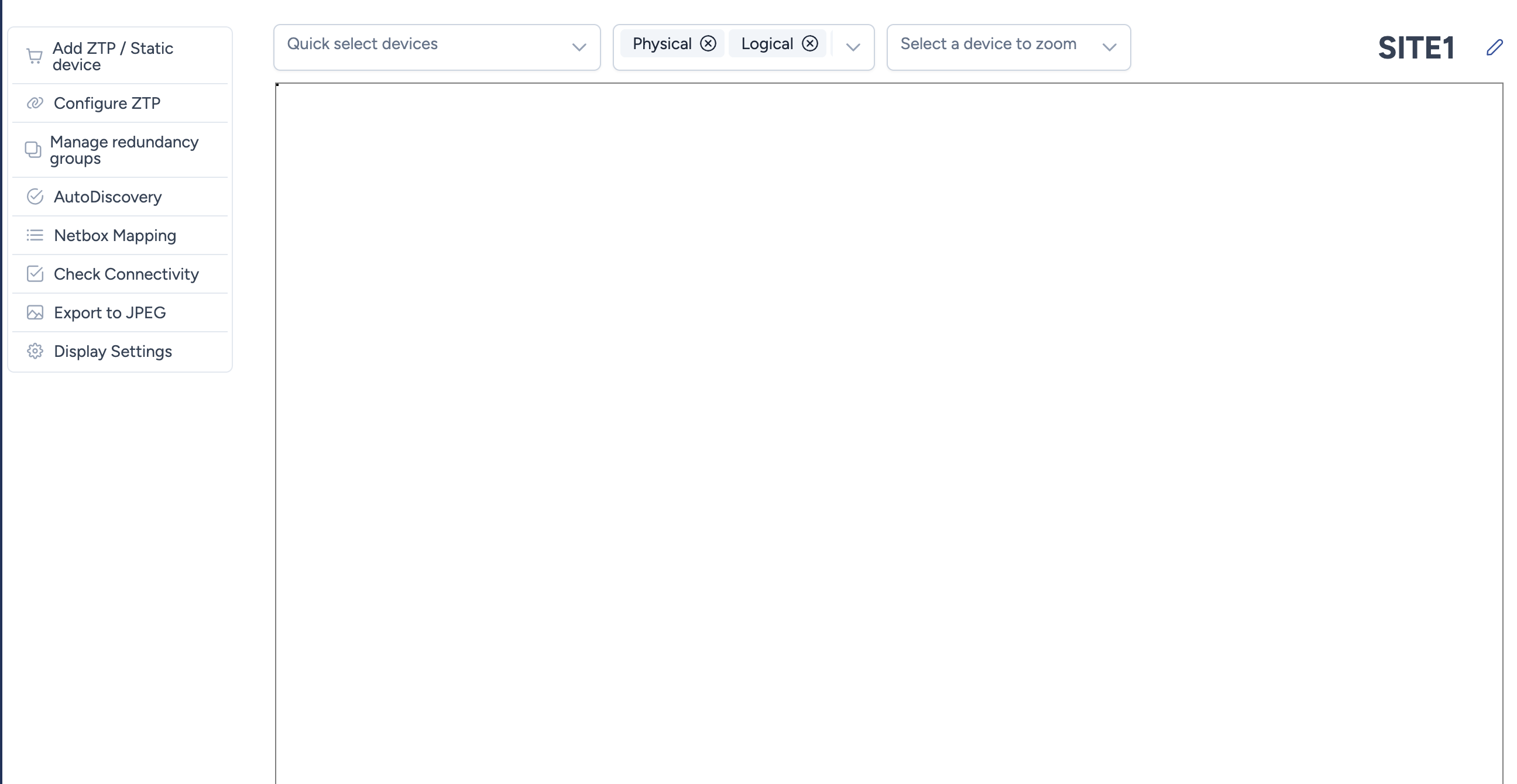
Top Navigation Bar
The top bar provides tools to navigate, search, and filter the map view.
- Quick select devices: A dropdown menu to bulk-select elements on the map based on specific criteria.
- Device types: Select all devices of a certain category (e.g., Switches, Routers).
- Buildings: Select all devices located in a specific building.
- Redundancy groups: Select configured high-availability groups.
- Interface display options: The active filters (e.g.,
Physical,Logical) are displayed as chips. You can remove them to hide specific layers.- Connector: Toggles the visibility of interface/port labels on links.
- Device: Shows or hides network device icons.
- Hostname: Toggles the display of device hostnames labels.
- Logical: Controls the visibility of logical links and layers (L2/L3).
- Physical: Controls the visibility of physical cabling and links (L1).
- Redundancy groups: Visualizes the clustering of redundant devices (e.g., MC-LAG, Stack).
- Select a device to zoom: A searchable dropdown list containing all devices on the map.
- Action: Typing a name allows you to filter the list.
- Result: Selecting a device automatically pans and zooms the camera to center the view directly on that specific asset.
- Edit Site: The pencil icon next to the site name (top right) allows you to rename the site.
Management Actions
The left-hand sidebar provides access to the operational features of the site.
- Add ZTP / Static device: Opens the wizard to onboard new devices.
- Configure ZTP: Configure and trigger Avalon's the Zero Touch Provisioning process.
- Manage redundancy groups: Create or edit high-availability groups.
- AutoDiscovery: Settings and triggers for the network discovery engine.
- Netbox Mapping: Per site Device types/roles Netbox mapping.
- Check Connectivity: Triggers an immediate reachability check on all map devices.
- Export to JPEG: Generates and downloads a high-resolution image of the current topology view.