AutoDiscovery
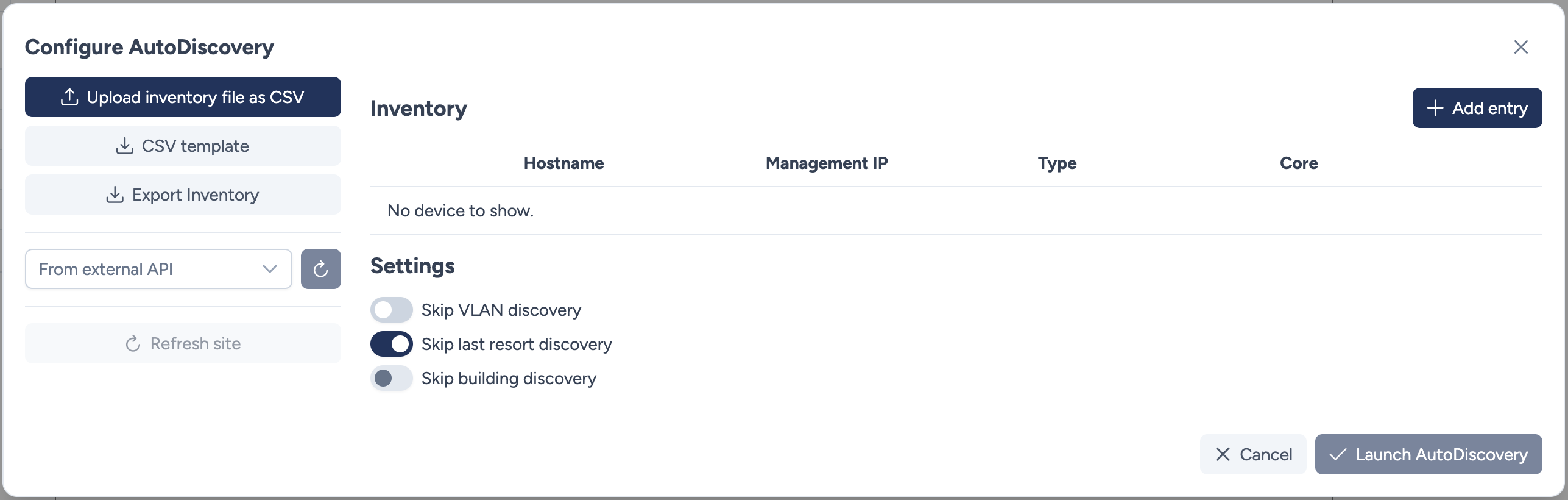
This modal allows you to configure and trigger the discovery process to populate your site with network devices.
Inventory Source
To ensure a fast and accurate discovery process, Avalon currently requires a precise list of targets. This prevents the system from attempting connections to unknown or unreachable devices.
You can populate the inventory using two methods:
-
CSV File: Manually upload a list of devices.
- Upload inventory file as CSV: Select a local file to populate the table.
- CSV template: Download a pre-formatted file to help you build your inventory.
- Export Inventory: Download the current list displayed in the table.
-
From external API: Pulls the inventory from a configured Source of Truth (e.g., Netbox) if a mapping has been defined.
-
Refresh site: Reloads the view of site based on the database.
Roadmap: IP Range Scanning
Targeted for Q1 2026, Avalon will introduce discovery based on IP address ranges. This update will allow you to:
- Automatically find new devices without manually updating a CSV or Source of Truth.
- Fully automate the observability lifecycle by combining this feature with Scheduled Tasks (programming regular AutoDiscovery runs).
Inventory details
The main table lists the devices to be targeted. The following information is critical:
- Hostname: The device name. Avalon will verify this hostname upon connection; if it does not match the device's actual hostname, the discovery for that node may fail or raise a warning.
- Management IP: The IP address used to reach the device.
- Core: A boolean flag (True/False).
- Requirement: You must define at least one Core device.
- Usage: This device serves as the central point for the topology algorithm.
Device Type Logic:
The Type field determines the icon used on the map and allows filtering via the "Quick select" menu available in several modals.
Supported Device Types: The following internal types are available in Avalon. You should use these exact values in your CSV file:
dc_access_switchdc_aggregation_switchdc_core_switchfirewalll2_access_switchl2_aggregation_switchl3_core_switchrouterwlan_controller
Automatic Deduction: If the type is left empty, Avalon automatically deduces it based on the network topology depth relative to the Core device:
- Core Device: Defaults to
l3_core_switch. - Intermediate Node: Defaults to
l2_aggregation_switch. - Leaf Node (Edge): Defaults to
l2_access_switch.
Automatic Detection & Overrides
- Firewalls: Automatically detected via their security vendor driver.
- Routers: Cisco routers are automatically identified.
- DC Devices / Others: For Data Center equipment or specific roles not covered by the automatic logic, you must manually override the type in the CSV file or via the Netbox mapping.
Roadmap
Customizing device types and uploading custom icons is not yet available but is planned for a future release.
Settings
These toggles allow you to customize the depth of the discovery process.
- Skip VLAN discovery: If enabled, VLAN information is ignored.
- Skip last resort discovery: If enabled, default routes/gateways are not processed.
- Skip building discovery: If enabled, physical location data (buildings) is ignored.
Actions
- Add entry: Manually adds a single line to the inventory table.
- Cancel: Closes the modal without starting the process.
- Launch AutoDiscovery: Validates the inventory and starts the discovery engine.
Adding a single entry manually
If you do not wish to use a CSV file or an external source, you can add devices one by one directly in the interface.
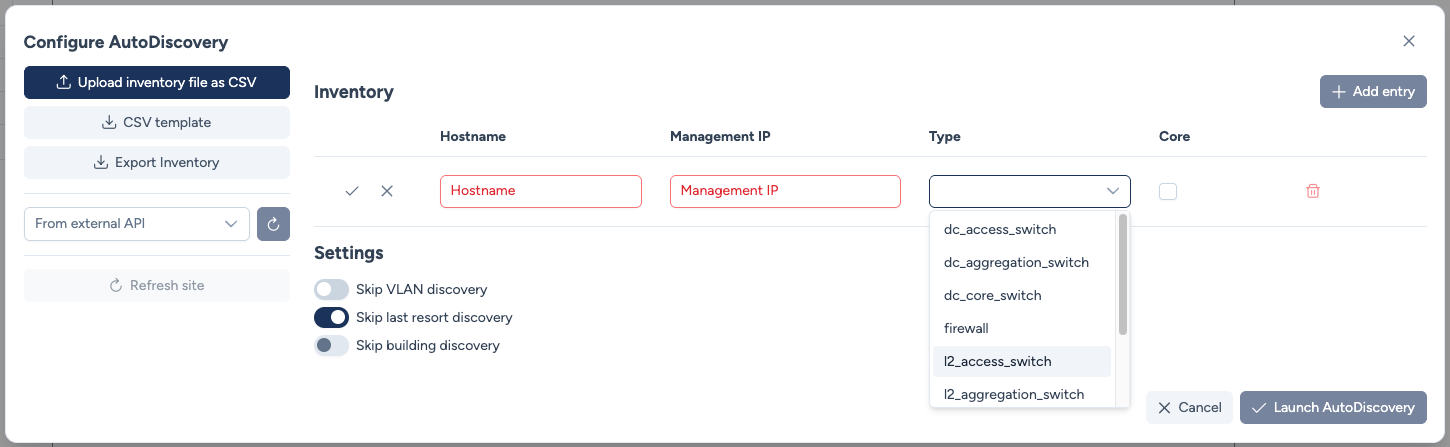
- Click the + Add entry button (top right of the table).
- A new row appears. Click on the Pencil icon on the left of the row to start editing and fill in the required information:
- Hostname: The exact network name of the device.
- Management IP: The reachable IP address.
- Type: Select the device role from the dropdown (or leave empty for auto-deduction).
- Core: Check this box if the device is a root node for the topology.
- Click the Checkmark icon (
✓) on the left to confirm and save the line. - Repeat the operation for as many devices as needed.
- To remove a line, click the Trash icon on the right side of the row.
Common Pitfall: Where to add devices?
This inventory table is strictly for existing, reachable devices that you want Avalon to fully manage and discover (via SSH).
If you are looking to:
- Onboard a new device that is not yet configured (via Zero Touch Provisioning).
- Add a passive/unmanaged device to the map (a device Avalon cannot connect to, but you want visibly on the diagram).
Do not use this form. Please close this modal and use the Add ZTP / Static device menu located in the left sidebar instead.